
(Shapeshifting)

Digital images (photos and graphics) are measured in pixels. Images are printed on canvas measured in inches, centimeters, etc. The shape of an image is defined as a ratio or proportion. The ratio is width/height. This proportion is the object's Aspect Ratio or AR.
To bridge technologies the digital image's shape is modified, without content distortion, to match the canvas's shape To this end, the digital image may be trimmed or a transitional border added.
(See "Aspect Ratio" for more on ARs.)
Stretch to Fit?
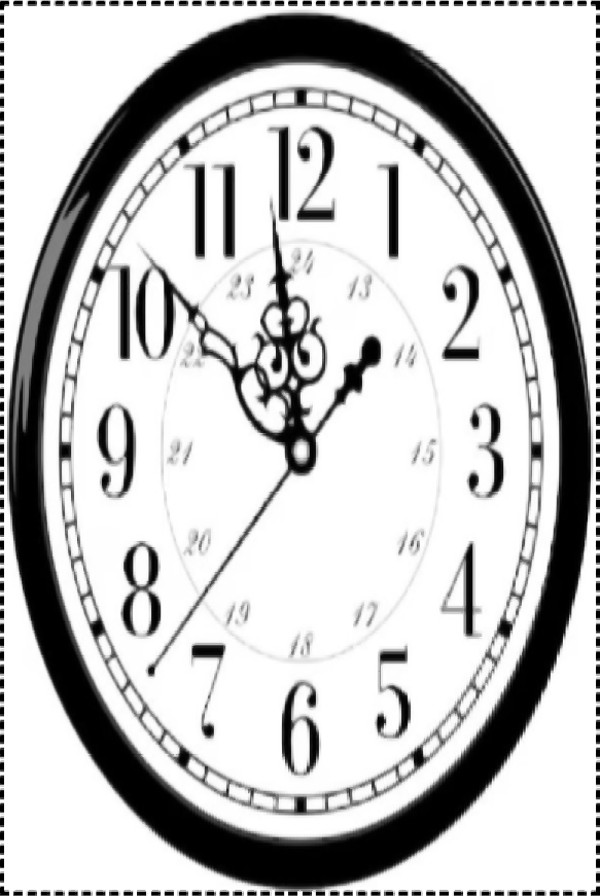
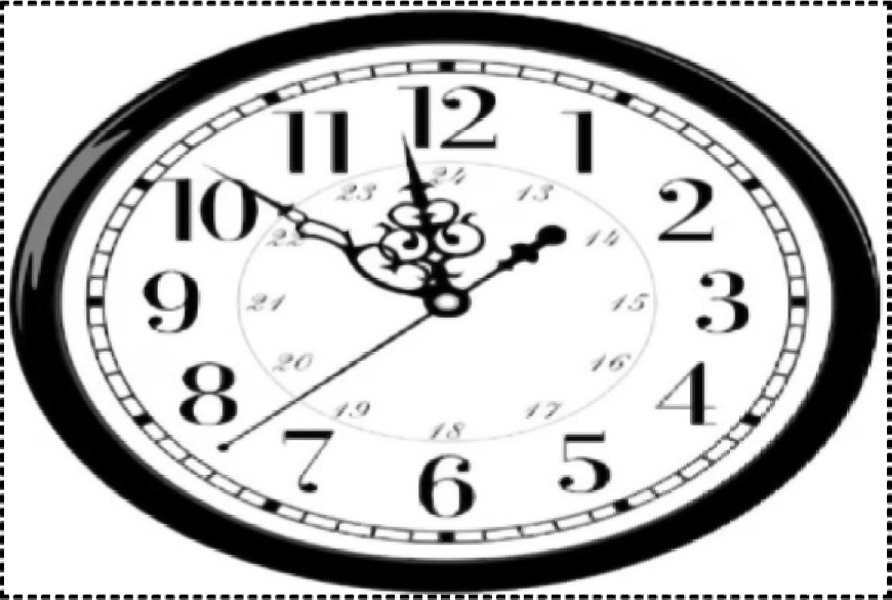 The left-hand image is the original digital image. The center and right-hand images are distorted, reshaped by printing. Distortion is from printing on a canvas with a different AR. In this example canvas shapes (from l - r) are: 10" x 10", 10" x 15", 15" x 10".
The left-hand image is a raw digital image. The center and right-hand images are distorted, reshaped by printing. Distortion is from printing on a canvas with a different AR. In this example canvas shapes (from l - r) are: 10" x 10", 10" x 15", 15" x 10". Here, distortion occurs if the raw image is not printed on a square canvas. In situations where available canvas sizes/ARs are different, undistorted reshaping is necessary. The following describes three such methods.
The left-hand image is the original digital image. The center and right-hand images are distorted, reshaped by printing. Distortion is from printing on a canvas with a different AR. In this example canvas shapes (from l - r) are: 10" x 10", 10" x 15", 15" x 10".
The left-hand image is a raw digital image. The center and right-hand images are distorted, reshaped by printing. Distortion is from printing on a canvas with a different AR. In this example canvas shapes (from l - r) are: 10" x 10", 10" x 15", 15" x 10". Here, distortion occurs if the raw image is not printed on a square canvas. In situations where available canvas sizes/ARs are different, undistorted reshaping is necessary. The following describes three such methods.
Add Borders
 Potential drawbacks include:
Cropping
Horizontal and vertical edge cropping is discussed below. Original image content may favor a particular method. Cropping also produces borderless prints.
Preliminaries
Horizontal Cropping
 Vertical Cropping
 Cropping Tips
GIMP (GNU Image Manipulation Program) is a free and open-source raster graphics editor used for image editing, photo retouching, and digital artwork creation. Again, it's a free download. In GIMP's File>New function you can specify, and create, an exact Trimmed Image sized object. This New object functions a cropping image or cookie-cutter underlay.
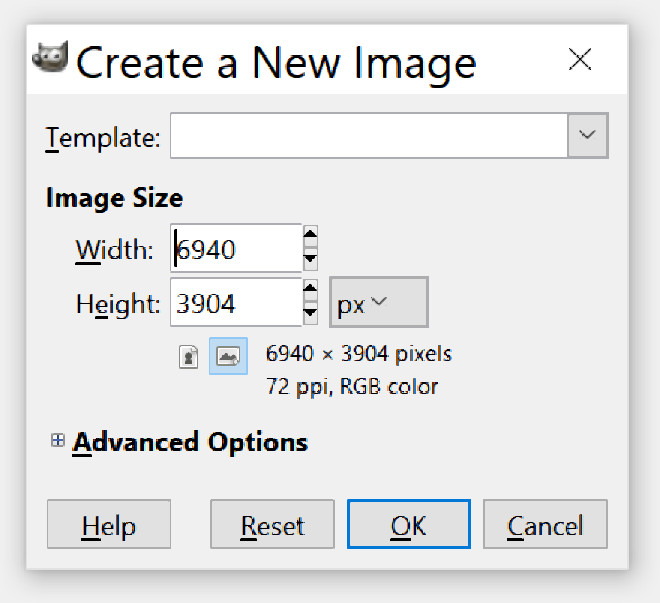 Next in GIMP, File>Open as Layers... open the original image file. This image will overlay the newly created cropping image. Saving the layered image, in Gimp, trims the overlay to cropping image dimensions.
To bridge technologies the digital image's shape is modified, without content distortion, to match the canvas's shape To this end, the digital image may be trimmed or a transitional border added.
(See "Aspect Ratio" for more on ARs.)
Stretch to Fit?
Add Borders
1.
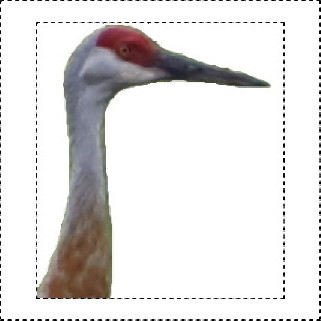
The digital image AR is 0.8976:1 The closest larger, stock canvas AR is 1:1, square.2.
The raw image 193 x 215 PX.3.
Bordered image on square background 250 x 250 PX.4.
On a 10" canvas, the original image is 7.72" x 8.6".5.
On a 10" canvas, horizontal borders are 0.7" thick and vertical borders are 1.14" thick. •
Different horizontal and vertical border thicknesses. •
Some prefer a borderless style.Horizontal and vertical edge cropping is discussed below. Original image content may favor a particular method. Cropping also produces borderless prints.
Preliminaries
1.
Canvas sizes from 8" x 8" to 72" x 72", n 1" increments.2.
In this example, canvas width to fit desired display area is 32".3.
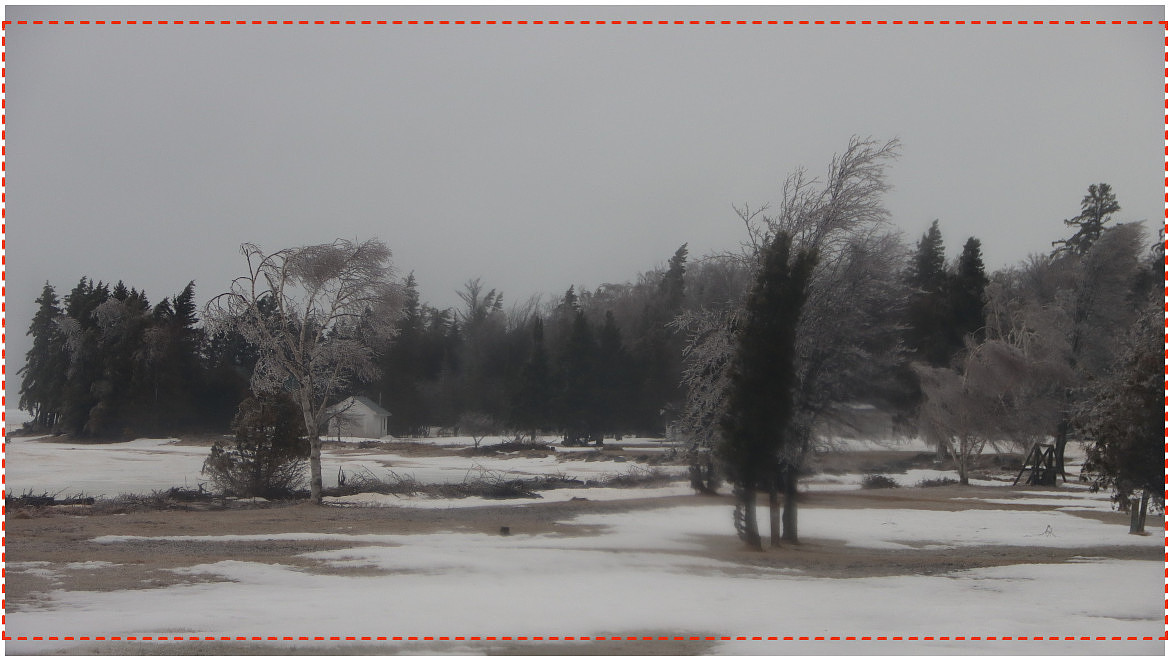
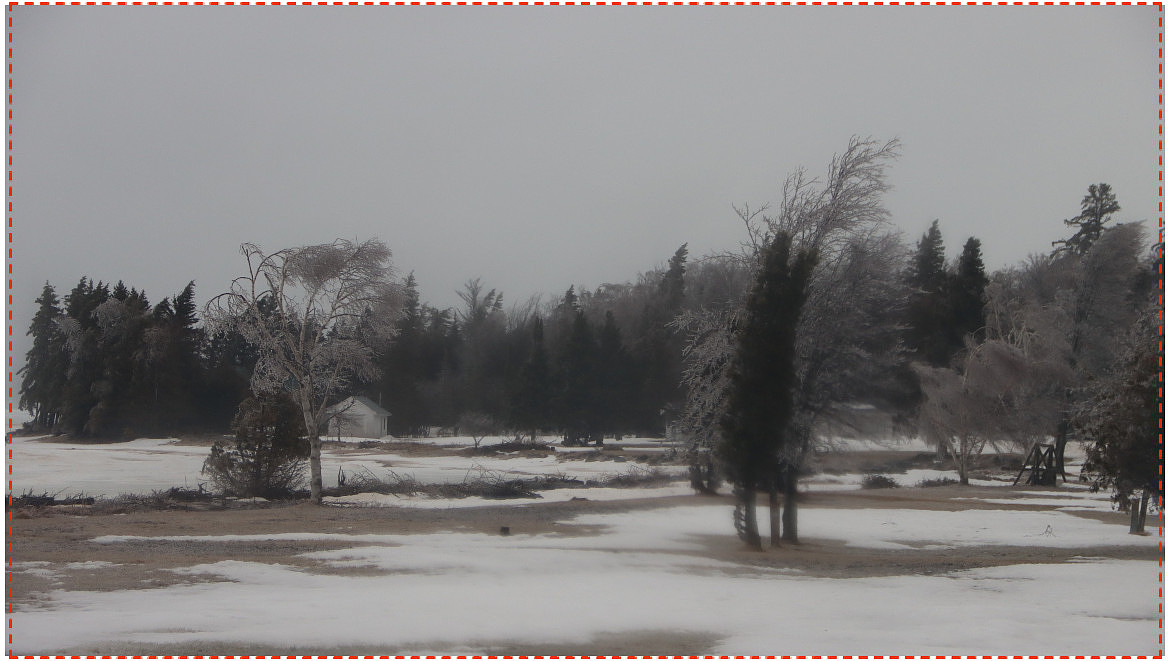
Original image dimensions: 6960 x 3904 PX.4.
Horizontal PX/" = 6960/32 or 217.5.5.
Calculated canvas height@ 217.5 PX/" is 3904/217.5 or 17.94942528735632".6.
Canvas height choices are even inches. Canvas height choices are closest to calculated value are 17"" and 18". An 18" height requires vertical cropping. Horizontal cropping will produce the 17" height. The 18" height will contain more of the original image. •
Convert 17" canvas height to PX: 217.5x17 = 3697.5 PX (rounded to 3698 PX). •
Cropped image = 6960 x 3698 PX. •
Canvas = 32" x 17".
•
Convert 18" canvas height to PX: 3904/18 = 216.8888888888889. •
Cropped image width is 32 X 216.8888888888889 = 6,940.444444444444 rounded to 6940 PX. •
Cropped image = 6940 x 3904 PX. •
Canvas = 32" x 18".
GIMP (GNU Image Manipulation Program) is a free and open-source raster graphics editor used for image editing, photo retouching, and digital artwork creation. Again, it's a free download. In GIMP's File>New function you can specify, and create, an exact Trimmed Image sized object. This New object functions a cropping image or cookie-cutter underlay.